
Beats Studio Wireless Headphones How to Connect: Quick Guide!

Pairing With Ios Devices

Connecting Beats Studio Wireless headphones to your iOS device is easy. The W1 chip makes it quick. Just open the case near your iPhone or iPad. A prompt will appear on your screen. Tap connect to pair your headphones.

If you face issues, check a few things. Make sure Bluetooth is on. Restart your iOS device if needed. Sometimes, forgetting the device helps. Go to Settings, then Bluetooth, and tap the “i” next to your headphones. Select Forget This Device. Try reconnecting again.

Keep your headphones charged. Low battery can cause problems. If issues persist, reset your headphones. Press and hold the power button for 10 seconds. Wait for the light to flash. Now try pairing again.

Connecting To Android Devices

To connect your Beats Studio Wireless Headphones to an Android device, follow these steps:

  • Turn on your headphones by pressing the power button.
  • Open the Bluetooth settings on your Android device.
  • Make sure Bluetooth is enabled.
  • Look for your headphones in the list of available devices.
  • Tap on the name of your headphones to connect.

Sometimes, problems happen. Here are some solutions:

  • Make sure your headphones are charged.
  • Turn off and on the Bluetooth on your device.
  • Restart your headphones.
  • Forget the device and try to pair again.

Linking To Windows Computers

To connect your Beats Studio Wireless Headphones to a Windows PC, follow these steps. First, turn on your headphones. Press and hold the power button until the LED light flashes. This means they are in pairing mode.

Next, on your computer, go to Settings. Click on Devices, then choose Bluetooth & other devices. Make sure Bluetooth is turned on. Now click on Add Bluetooth or other device.

Select Bluetooth from the list. Your computer will search for devices. When you see your Beats headphones, click on them to connect.

Once connected, you will see a message on your screen. You can now enjoy your music and calls through your headphones.

Beats Studio Wireless Headphones How to Connect

Mac Integration

Connecting your Beats Studio Wireless Headphones to a Mac is simple. First, turn on your headphones. Then, open the Bluetooth settings on your Mac. Click the Apple logo, then choose System Preferences. Next, select Bluetooth.

Make sure Bluetooth is turned on. Your headphones should appear in the list. Click on your headphones’ name. Then, choose Connect. You will hear a sound when connected.

If your headphones do not connect, try these steps:

  • Ensure your headphones are charged.
  • Restart your Mac.
  • Reset your headphones by holding the power button.

These steps help fix any pairing issues. Enjoy your music!

Using With Other Bluetooth Devices

Connecting Beats Studio Wireless Headphones to non-iOS or Android devices is easy. Follow these simple steps:

  • Make sure your headphones are charged.
  • Turn on your headphones by pressing the power button.
  • Enable Bluetooth on your device.
  • Search for new devices.
  • Find “Beats Studio” in the list.
  • Tap to connect.
  • Listen to music or take calls.

For best results, keep your headphones and device close. Sometimes, turning Bluetooth off and on helps. If you face issues, restart both devices. This often solves connection problems.

Beats Studio Wireless Headphones How to Connect

Advanced Features And Controls

Explore the advanced features of your Beats Studio Wireless Headphones. These headphones offer great sound quality and comfort. You can easily adjust the volume with simple controls. Just tap on the ear cups.

Customize your listening experience. Use the Beats app to change settings. You can also switch between noise cancellation and transparency mode. This lets you hear your surroundings when needed.

Connect your headphones to multiple devices. This allows you to switch from your phone to your laptop. Stay connected without hassle.

Check for firmware updates. Keeping your headphones updated helps with performance. Enjoy a better sound experience with every update.

Maintaining Your Beats Studio Headphones

To keep your Beats Studio headphones in great shape, clean them often. Use a soft cloth to wipe the ear cups. Avoid using strong cleaners. They can damage the surface.

For the battery, charge it properly. Only use the charger that comes with the headphones. Do not let the battery drain completely.

Try not to leave the headphones charging overnight. This can harm the battery over time. Store them in a cool, dry place.

Turn off the headphones when not in use. This helps save battery life. Regular care will make your headphones last longer.

Troubleshooting And Support

Common issues may arise with Beats Studio Wireless Headphones. Problems include difficulty connecting or poor sound quality. To fix connection issues, try turning off and on your headphones. Make sure Bluetooth is enabled on your device. If sound quality is low, check the battery level. Charge your headphones if needed.

Sometimes, software updates help. Check for updates on your device. Restarting the device can also resolve issues. Resetting your headphones may be necessary too. Hold the power button for ten seconds to reset.

If problems continue, seek professional support. Contact Beats customer service for assistance. They can provide guidance for your specific issue. Getting help from a professional can save time and effort.

Frequently Asked Questions

How Do I Connect Beats Studio Wireless Headphones?

To connect your Beats Studio Wireless headphones, first, turn them on by pressing the power button. Then, enable Bluetooth on your device. Search for available devices, and select your Beats Studio from the list. Once connected, you’ll hear a confirmation sound, indicating a successful connection.

Why Won’t My Beats Headphones Connect?

If your Beats headphones won’t connect, ensure they are charged. Check that Bluetooth is enabled on your device. Try turning off and on your headphones. If still unsuccessful, reset the headphones by holding the power and volume down buttons simultaneously for about 10 seconds, then attempt to reconnect.

Can I Connect Beats To Multiple Devices?

Beats Studio Wireless headphones can connect to multiple devices. However, they can only actively connect to one device at a time. To switch devices, disconnect the current one and connect to the new device via Bluetooth settings. This allows for seamless transitions between devices.

How Do I Reset My Beats Studio Headphones?

To reset your Beats Studio headphones, press and hold the power button and the volume down button for about 10 seconds. Release both buttons when the LED indicator flashes red and white. Your headphones are now reset, allowing you to reconnect them to any device.

Conclusion

Connecting your Beats Studio Wireless Headphones is easy. Just follow the steps outlined in this guide. Soon, you’ll enjoy great sound without the hassle of wires. Remember to keep your headphones charged for the best experience. If you face any issues, check the Bluetooth settings.

With practice, connecting will become second nature. Enjoy your music, podcasts, or calls with clear sound. Keep these tips handy for future connections. Happy listening!


Connecting your Beats Studio Wireless Headphones can seem tricky at first. With the right steps, it becomes simple and quick.

In today’s world, wireless headphones have become a popular choice for music lovers and commuters alike. The Beats Studio Wireless Headphones offer great sound quality and comfort. However, many users find connecting them to devices a bit confusing. This guide will help you easily connect your headphones to your phone, tablet, or computer.

Understanding the connection process can enhance your listening experience. Whether you are new to wireless technology or just need a refresher, this guide will walk you through each step. Let’s dive into how to connect your Beats Studio Wireless Headphones.

Beats Studio Wireless Headphones How to Connect

Introduction To Beats Studio Wireless Headphones

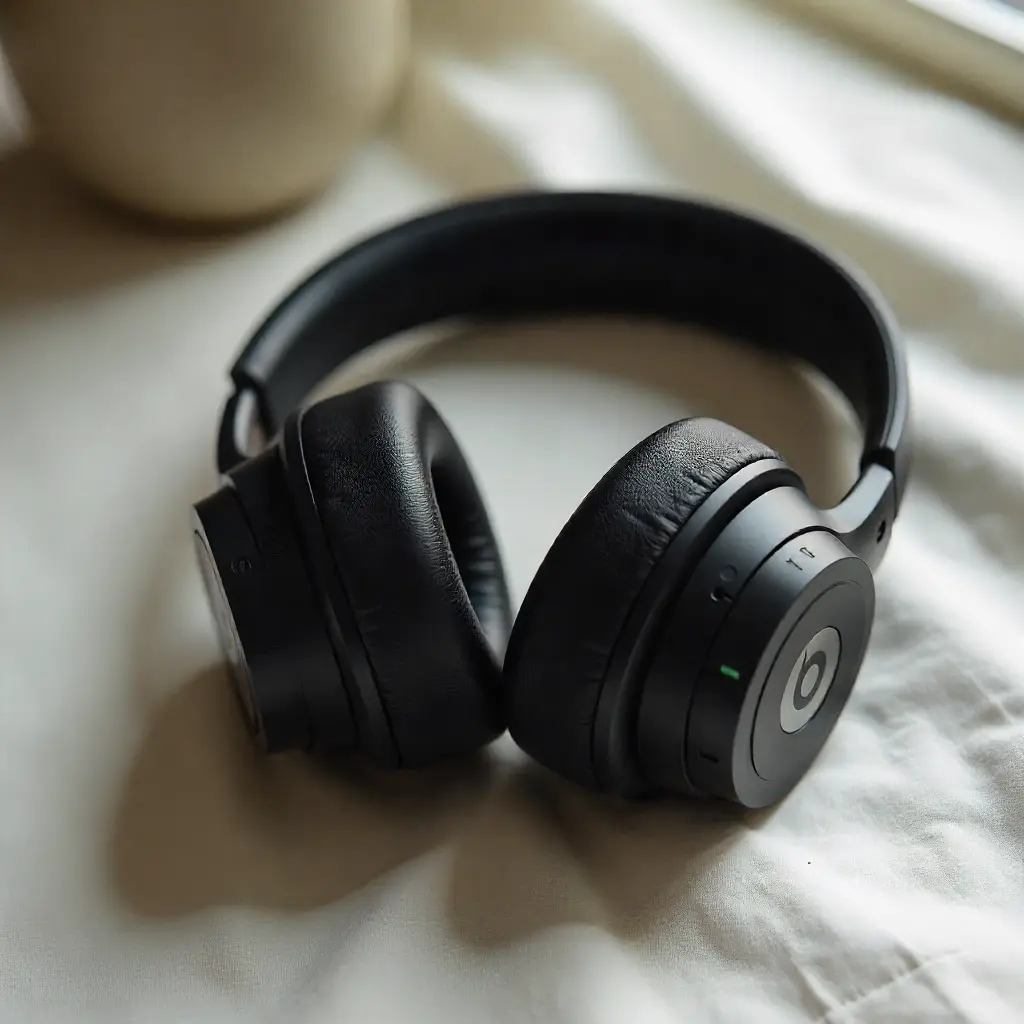
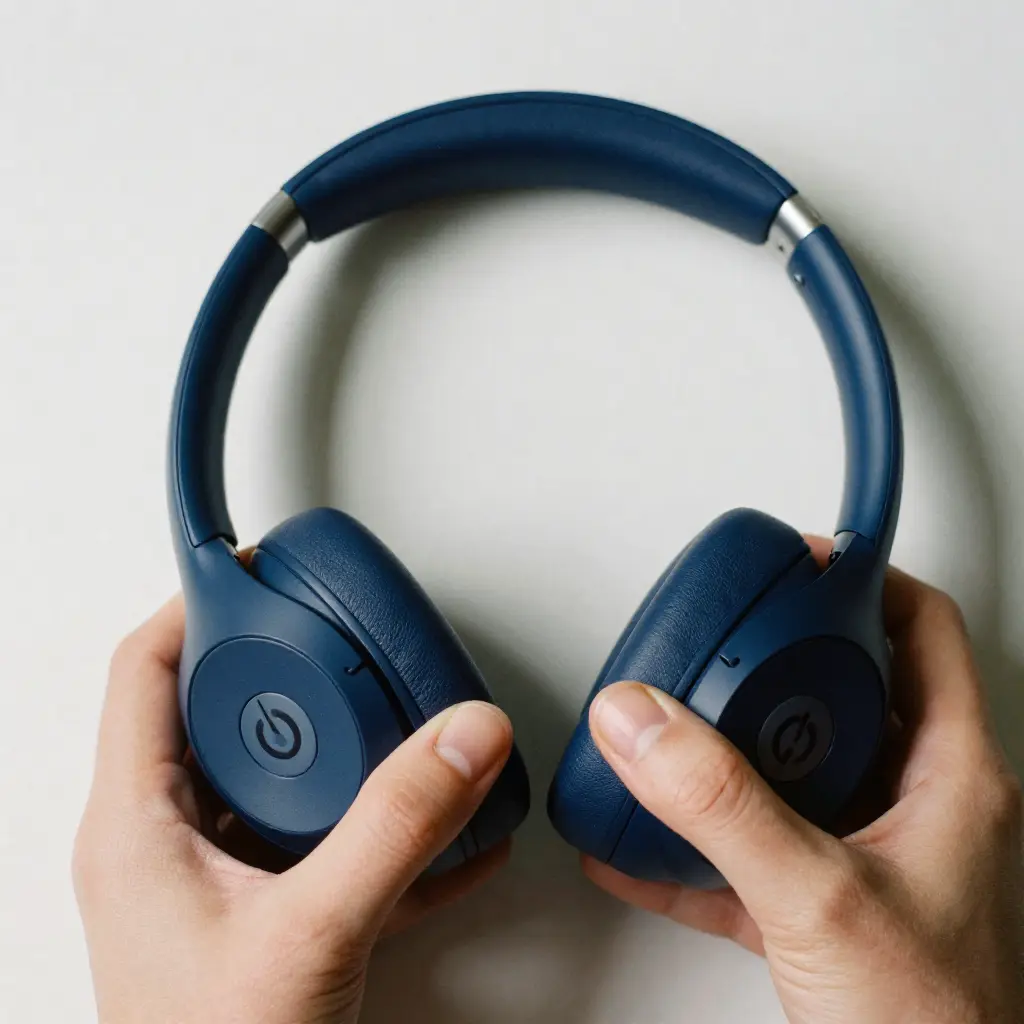
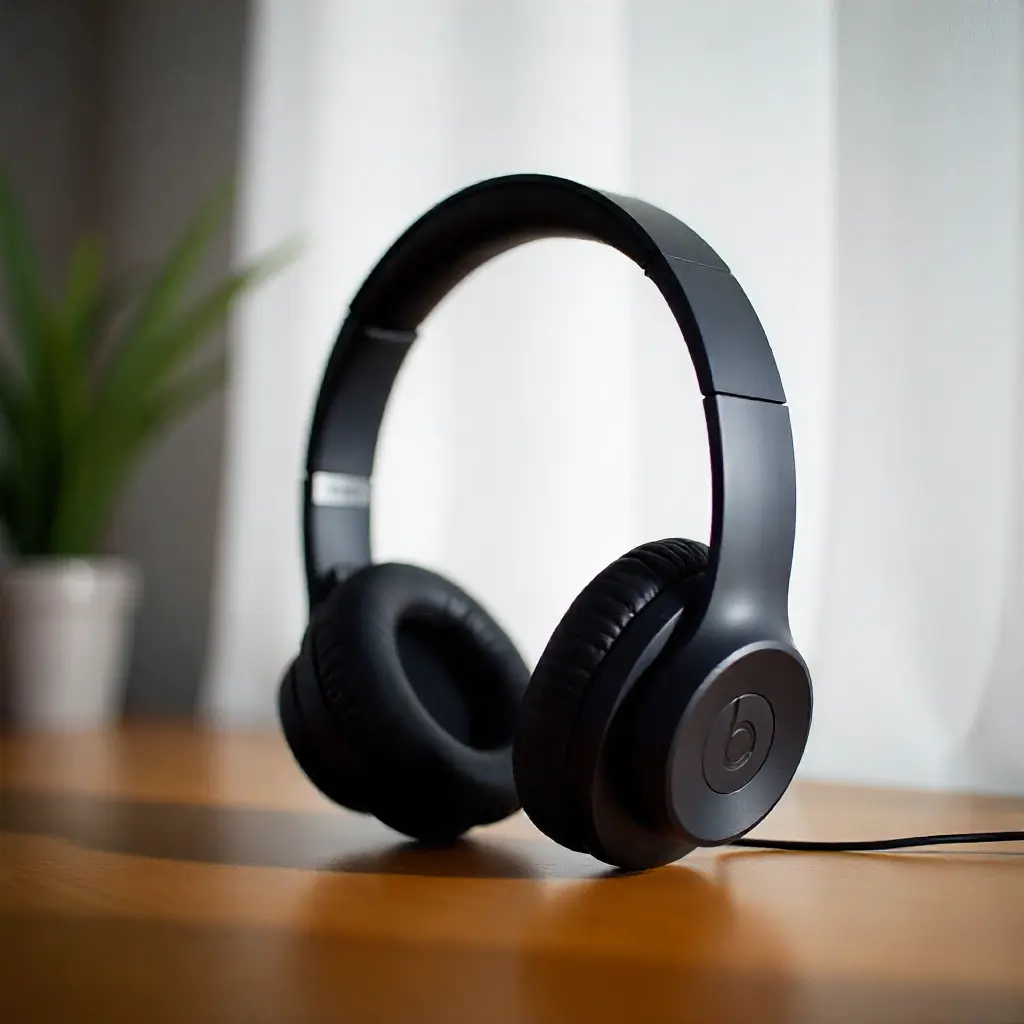
The Beats Studio Wireless Headphones are popular for many reasons. They offer great sound quality and comfort. Users enjoy the wireless feature. This makes listening easy and fun.

Wireless listening has become very common. People love the freedom it brings. No tangled wires mean less hassle. This has changed how we enjoy music and podcasts.

Key Features Description
Wireless Connectivity Connect easily via Bluetooth.
Noise Cancellation Blocks out outside noise.
Comfortable Fit Padded ear cups for long wear.
Long Battery Life Enjoy hours of listening time.

Initial Setup Before Connection

Start by opening the box carefully. Inside, you will find your Beats Studio headphones. Also, there is a charging cable and a quick start guide. Take a moment to look at everything.

Next, charge your headphones. Use the included charging cable. Plug one end into the headphones and the other into a power source. Let them charge for at least an hour. A full charge gives you hours of listening time.

Pairing With Ios Devices

Connecting Beats Studio Wireless headphones to your iOS device is easy. The W1 chip makes it quick. Just open the case near your iPhone or iPad. A prompt will appear on your screen. Tap connect to pair your headphones.

If you face issues, check a few things. Make sure Bluetooth is on. Restart your iOS device if needed. Sometimes, forgetting the device helps. Go to Settings, then Bluetooth, and tap the “i” next to your headphones. Select Forget This Device. Try reconnecting again.

Keep your headphones charged. Low battery can cause problems. If issues persist, reset your headphones. Press and hold the power button for 10 seconds. Wait for the light to flash. Now try pairing again.

Connecting To Android Devices

To connect your Beats Studio Wireless Headphones to an Android device, follow these steps:

  • Turn on your headphones by pressing the power button.
  • Open the Bluetooth settings on your Android device.
  • Make sure Bluetooth is enabled.
  • Look for your headphones in the list of available devices.
  • Tap on the name of your headphones to connect.

Sometimes, problems happen. Here are some solutions:

  • Make sure your headphones are charged.
  • Turn off and on the Bluetooth on your device.
  • Restart your headphones.
  • Forget the device and try to pair again.

Linking To Windows Computers

To connect your Beats Studio Wireless Headphones to a Windows PC, follow these steps. First, turn on your headphones. Press and hold the power button until the LED light flashes. This means they are in pairing mode.

Next, on your computer, go to Settings. Click on Devices, then choose Bluetooth & other devices. Make sure Bluetooth is turned on. Now click on Add Bluetooth or other device.

Select Bluetooth from the list. Your computer will search for devices. When you see your Beats headphones, click on them to connect.

Once connected, you will see a message on your screen. You can now enjoy your music and calls through your headphones.

Beats Studio Wireless Headphones How to Connect

Mac Integration

Connecting your Beats Studio Wireless Headphones to a Mac is simple. First, turn on your headphones. Then, open the Bluetooth settings on your Mac. Click the Apple logo, then choose System Preferences. Next, select Bluetooth.

Make sure Bluetooth is turned on. Your headphones should appear in the list. Click on your headphones’ name. Then, choose Connect. You will hear a sound when connected.

If your headphones do not connect, try these steps:

  • Ensure your headphones are charged.
  • Restart your Mac.
  • Reset your headphones by holding the power button.

These steps help fix any pairing issues. Enjoy your music!

Using With Other Bluetooth Devices

Connecting Beats Studio Wireless Headphones to non-iOS or Android devices is easy. Follow these simple steps:

  • Make sure your headphones are charged.
  • Turn on your headphones by pressing the power button.
  • Enable Bluetooth on your device.
  • Search for new devices.
  • Find “Beats Studio” in the list.
  • Tap to connect.
  • Listen to music or take calls.

For best results, keep your headphones and device close. Sometimes, turning Bluetooth off and on helps. If you face issues, restart both devices. This often solves connection problems.

Beats Studio Wireless Headphones How to Connect

Advanced Features And Controls

Explore the advanced features of your Beats Studio Wireless Headphones. These headphones offer great sound quality and comfort. You can easily adjust the volume with simple controls. Just tap on the ear cups.

Customize your listening experience. Use the Beats app to change settings. You can also switch between noise cancellation and transparency mode. This lets you hear your surroundings when needed.

Connect your headphones to multiple devices. This allows you to switch from your phone to your laptop. Stay connected without hassle.

Check for firmware updates. Keeping your headphones updated helps with performance. Enjoy a better sound experience with every update.

Maintaining Your Beats Studio Headphones

To keep your Beats Studio headphones in great shape, clean them often. Use a soft cloth to wipe the ear cups. Avoid using strong cleaners. They can damage the surface.

For the battery, charge it properly. Only use the charger that comes with the headphones. Do not let the battery drain completely.

Try not to leave the headphones charging overnight. This can harm the battery over time. Store them in a cool, dry place.

Turn off the headphones when not in use. This helps save battery life. Regular care will make your headphones last longer.

Troubleshooting And Support

Common issues may arise with Beats Studio Wireless Headphones. Problems include difficulty connecting or poor sound quality. To fix connection issues, try turning off and on your headphones. Make sure Bluetooth is enabled on your device. If sound quality is low, check the battery level. Charge your headphones if needed.

Sometimes, software updates help. Check for updates on your device. Restarting the device can also resolve issues. Resetting your headphones may be necessary too. Hold the power button for ten seconds to reset.

If problems continue, seek professional support. Contact Beats customer service for assistance. They can provide guidance for your specific issue. Getting help from a professional can save time and effort.

Frequently Asked Questions

How Do I Connect Beats Studio Wireless Headphones?

To connect your Beats Studio Wireless headphones, first, turn them on by pressing the power button. Then, enable Bluetooth on your device. Search for available devices, and select your Beats Studio from the list. Once connected, you’ll hear a confirmation sound, indicating a successful connection.

Why Won’t My Beats Headphones Connect?

If your Beats headphones won’t connect, ensure they are charged. Check that Bluetooth is enabled on your device. Try turning off and on your headphones. If still unsuccessful, reset the headphones by holding the power and volume down buttons simultaneously for about 10 seconds, then attempt to reconnect.

Can I Connect Beats To Multiple Devices?

Beats Studio Wireless headphones can connect to multiple devices. However, they can only actively connect to one device at a time. To switch devices, disconnect the current one and connect to the new device via Bluetooth settings. This allows for seamless transitions between devices.

How Do I Reset My Beats Studio Headphones?

To reset your Beats Studio headphones, press and hold the power button and the volume down button for about 10 seconds. Release both buttons when the LED indicator flashes red and white. Your headphones are now reset, allowing you to reconnect them to any device.

Conclusion

Connecting your Beats Studio Wireless Headphones is easy. Just follow the steps outlined in this guide. Soon, you’ll enjoy great sound without the hassle of wires. Remember to keep your headphones charged for the best experience. If you face any issues, check the Bluetooth settings.

With practice, connecting will become second nature. Enjoy your music, podcasts, or calls with clear sound. Keep these tips handy for future connections. Happy listening!

Leave a Comment