


Connecting To Windows Pcs
To pair your Beats Studio Wireless headphones with a Windows PC, follow these steps:
- Turn on your headphones by holding the power button.
- Open the Start Menu on your PC.
- Select Settings and then Devices.
- Click on Bluetooth & other devices.
- Turn on Bluetooth if it is off.
- Click on Add Bluetooth or other device.
- Choose Bluetooth from the options.
- Your PC will search for devices.
- Select your Beats headphones from the list.
- Follow any prompts to complete the pairing.
For troubleshooting, try these tips:
- Make sure headphones are charged.
- Ensure Bluetooth is on your PC.
- Restart your headphones and PC.
- Remove old connections in the Bluetooth settings.
Pairing With Mac Computers
To connect your Beats Studio Wireless Headphones to a Mac, follow these steps. First, turn on your headphones. Press and hold the power button until the LED light flashes. This shows they are in pairing mode.
On your Mac, click the Apple menu. Select System Preferences, then choose Bluetooth. Make sure Bluetooth is turned on. Your Mac will search for devices.
Look for your Beats headphones in the list. Click on them to connect. After pairing, you should see Connected next to the device name.
To ensure smooth playback, check the sound settings. Click the volume icon in the menu bar. Adjust the volume to your preference. Enjoy your music!
Multi-device Connectivity
Beats Studio Wireless headphones can connect to multiple devices. Switching between paired devices is easy.
To switch, just pause the audio on one device. Then, play audio on another device. The headphones will connect automatically.
Managing connections is simple. You can have your phone and computer paired. Play music from your computer, then answer a call on your phone.
To stay connected, ensure Bluetooth is on for all devices. Disconnect from one device to connect to another. Your headphones remember the last devices used.
Maintaining Your Connection
Battery life is very important for your Beats Studio headphones. Always check the battery level before use. Charge them when the battery is low. Use the charging cable that came with your headphones. This helps them last longer.
To keep your headphones working well, update the firmware regularly. Updates can fix problems and improve sound quality. Connect your headphones to a phone or computer. Open the Beats app or Bluetooth settings to check for updates. Follow the prompts to install any new software.
Troubleshooting Common Pairing Problems
Audio dropouts can be frustrating. They can happen for many reasons. First, check the Bluetooth connection. Make sure your headphones are close to the device. If the distance is too far, audio may cut out.
Next, resetting your Beats Studio headphones might help. To reset, hold the power button and the volume down button for 10 seconds. Release the buttons when the lights flash. This often fixes many issues.
Make sure your device’s software is up-to-date. An outdated version can cause problems. Try turning Bluetooth off and back on. This simple step can improve the connection.
Conclusion: Enhancing Your Audio Experience
Pairing your Beats Studio Wireless Headphones is simple. First, turn on the headphones. Hold the power button until the light flashes. This means they are ready to pair.
Next, go to your device’s Bluetooth settings. Turn on Bluetooth if it is off. Look for your Beats headphones in the list. Tap on them to connect. You will hear a sound when they are connected.
To maximize your Beats Studio features, explore the controls. Use the buttons to adjust volume and skip tracks. Noise cancellation helps you focus on your music. Make sure to charge your headphones regularly.
Frequently Asked Questions
How Do I Connect Beats Studio Wireless Headphones?
To connect your Beats Studio Wireless headphones, first ensure they’re charged. Turn on Bluetooth on your device. Press the power button on your headphones until the indicator light flashes. Select your headphones from the Bluetooth menu on your device to complete the pairing process.
Why Won’t My Beats Studio Headphones Connect?
If your Beats Studio headphones won’t connect, ensure they are charged and in pairing mode. Check if Bluetooth is enabled on your device. Also, try turning off and on your headphones. Restarting your device can help resolve connection issues as well.
Can I Connect Beats Studio Headphones To Multiple Devices?
Yes, you can connect your Beats Studio headphones to multiple devices. However, they can only actively connect to one device at a time. To switch devices, disconnect from the current one and select your headphones from the Bluetooth menu of the new device.
How To Reset Beats Studio Wireless Headphones?
To reset your Beats Studio Wireless headphones, hold down the power button and the volume down button simultaneously for about 10 seconds. The LED light will flash red and white, indicating a successful reset. After resetting, you can reconnect them to your device.
Conclusion
Connecting your Beats Studio Wireless Headphones is simple. Follow the steps outlined in this guide. Once connected, enjoy great sound and comfort. Troubleshooting tips help solve common issues. With practice, you can connect quickly each time. Listening to music, watching videos, or making calls will be easy.
Take your time to explore all features. Enjoy your headphones and the quality they bring. With these tips, you’re ready to go. Happy listening!
Connecting your Beats Studio Wireless Headphones is simple and quick. Knowing how to do it makes enjoying your music easier.
Whether you’re using a smartphone, tablet, or computer, these headphones deliver amazing sound. But for some, connecting them can be tricky. This guide will walk you through the steps to connect your Beats Studio Wireless Headphones. You’ll find clear instructions, tips, and answers to common questions.
Whether you’re a tech expert or a beginner, this post will help you enjoy your favorite tunes in no time. Let’s get started on making your listening experience better with seamless connectivity.
Introduction To Beats Studio Wireless Headphones
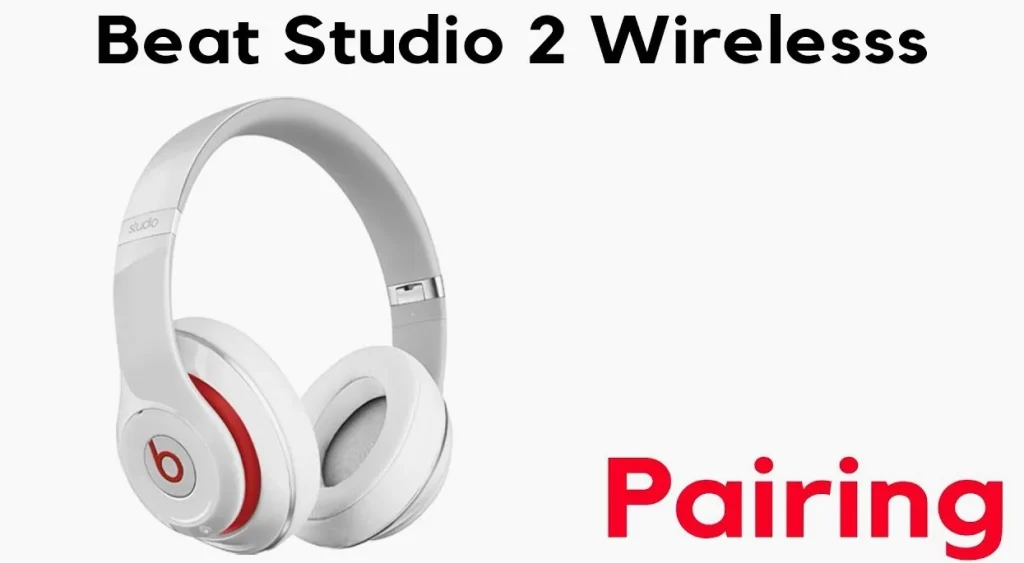
The Beats Studio Wireless Headphones come in a stylish box. Inside, you find the headphones, a charging cable, and a user guide. The packaging is simple but elegant. This makes the unboxing feel special.
Key features include:
| Feature | Description |
|---|---|
| Wireless Connectivity | Connects easily to devices without cables. |
| Long Battery Life | Enjoy hours of listening before needing a charge. |
| Noise Cancellation | Blocks outside noise for a better sound experience. |
| Comfortable Fit | Soft ear cushions allow for long use without discomfort. |
Initial Setup Before Pairing
Start by charging your Beats Studio Wireless Headphones. Use the USB charging cable provided. Plug one end into the headphones and the other into a power source. A full charge usually takes about two hours.
After charging, it’s time to power on the headphones. Press and hold the power button for a few seconds. You will hear a sound when they turn on. The LED light will blink to show they are ready to pair.
Pairing With Ios Devices
To connect Beats Studio Wireless headphones to your iOS device, first, open the Settings app.
Next, select Bluetooth. Make sure Bluetooth is turned on.
Put your headphones in pairing mode. To do this, press and hold the power button until the light flashes.
Your iOS device will search for devices. Wait until you see your Beats headphones in the list.
Tap on the name of your headphones. This will start the pairing process.
Once connected, you will see a checkmark next to the name. Your headphones are now ready to use!
The W1 chip makes this process easy. It helps devices connect quickly and smoothly.
Pairing With Android Devices
To pair your Beats Studio Wireless headphones with an Android device, follow these steps:
- First, turn on your headphones by pressing the power button.
- Next, put the headphones in pairing mode. Hold the power button until the light flashes.
- On your Android device, go to Settings.
- Tap on Bluetooth and turn it on.
- Look for your Beats headphones in the list.
- Tap on the headphones’ name to connect.
For a stable connection, keep these tips in mind:
- Stay within 30 feet of your device.
- Remove any obstructions like walls between the headphones and device.
- Turn off other Bluetooth devices nearby.
Connecting To Windows Pcs
To pair your Beats Studio Wireless headphones with a Windows PC, follow these steps:
- Turn on your headphones by holding the power button.
- Open the Start Menu on your PC.
- Select Settings and then Devices.
- Click on Bluetooth & other devices.
- Turn on Bluetooth if it is off.
- Click on Add Bluetooth or other device.
- Choose Bluetooth from the options.
- Your PC will search for devices.
- Select your Beats headphones from the list.
- Follow any prompts to complete the pairing.
For troubleshooting, try these tips:
- Make sure headphones are charged.
- Ensure Bluetooth is on your PC.
- Restart your headphones and PC.
- Remove old connections in the Bluetooth settings.
Pairing With Mac Computers
To connect your Beats Studio Wireless Headphones to a Mac, follow these steps. First, turn on your headphones. Press and hold the power button until the LED light flashes. This shows they are in pairing mode.
On your Mac, click the Apple menu. Select System Preferences, then choose Bluetooth. Make sure Bluetooth is turned on. Your Mac will search for devices.
Look for your Beats headphones in the list. Click on them to connect. After pairing, you should see Connected next to the device name.
To ensure smooth playback, check the sound settings. Click the volume icon in the menu bar. Adjust the volume to your preference. Enjoy your music!
Multi-device Connectivity
Beats Studio Wireless headphones can connect to multiple devices. Switching between paired devices is easy.
To switch, just pause the audio on one device. Then, play audio on another device. The headphones will connect automatically.
Managing connections is simple. You can have your phone and computer paired. Play music from your computer, then answer a call on your phone.
To stay connected, ensure Bluetooth is on for all devices. Disconnect from one device to connect to another. Your headphones remember the last devices used.
Maintaining Your Connection
Battery life is very important for your Beats Studio headphones. Always check the battery level before use. Charge them when the battery is low. Use the charging cable that came with your headphones. This helps them last longer.
To keep your headphones working well, update the firmware regularly. Updates can fix problems and improve sound quality. Connect your headphones to a phone or computer. Open the Beats app or Bluetooth settings to check for updates. Follow the prompts to install any new software.
Troubleshooting Common Pairing Problems
Audio dropouts can be frustrating. They can happen for many reasons. First, check the Bluetooth connection. Make sure your headphones are close to the device. If the distance is too far, audio may cut out.
Next, resetting your Beats Studio headphones might help. To reset, hold the power button and the volume down button for 10 seconds. Release the buttons when the lights flash. This often fixes many issues.
Make sure your device’s software is up-to-date. An outdated version can cause problems. Try turning Bluetooth off and back on. This simple step can improve the connection.
Conclusion: Enhancing Your Audio Experience
Pairing your Beats Studio Wireless Headphones is simple. First, turn on the headphones. Hold the power button until the light flashes. This means they are ready to pair.
Next, go to your device’s Bluetooth settings. Turn on Bluetooth if it is off. Look for your Beats headphones in the list. Tap on them to connect. You will hear a sound when they are connected.
To maximize your Beats Studio features, explore the controls. Use the buttons to adjust volume and skip tracks. Noise cancellation helps you focus on your music. Make sure to charge your headphones regularly.
Frequently Asked Questions
How Do I Connect Beats Studio Wireless Headphones?
To connect your Beats Studio Wireless headphones, first ensure they’re charged. Turn on Bluetooth on your device. Press the power button on your headphones until the indicator light flashes. Select your headphones from the Bluetooth menu on your device to complete the pairing process.
Why Won’t My Beats Studio Headphones Connect?
If your Beats Studio headphones won’t connect, ensure they are charged and in pairing mode. Check if Bluetooth is enabled on your device. Also, try turning off and on your headphones. Restarting your device can help resolve connection issues as well.
Can I Connect Beats Studio Headphones To Multiple Devices?
Yes, you can connect your Beats Studio headphones to multiple devices. However, they can only actively connect to one device at a time. To switch devices, disconnect from the current one and select your headphones from the Bluetooth menu of the new device.
How To Reset Beats Studio Wireless Headphones?
To reset your Beats Studio Wireless headphones, hold down the power button and the volume down button simultaneously for about 10 seconds. The LED light will flash red and white, indicating a successful reset. After resetting, you can reconnect them to your device.
Conclusion
Connecting your Beats Studio Wireless Headphones is simple. Follow the steps outlined in this guide. Once connected, enjoy great sound and comfort. Troubleshooting tips help solve common issues. With practice, you can connect quickly each time. Listening to music, watching videos, or making calls will be easy.
Take your time to explore all features. Enjoy your headphones and the quality they bring. With these tips, you’re ready to go. Happy listening!