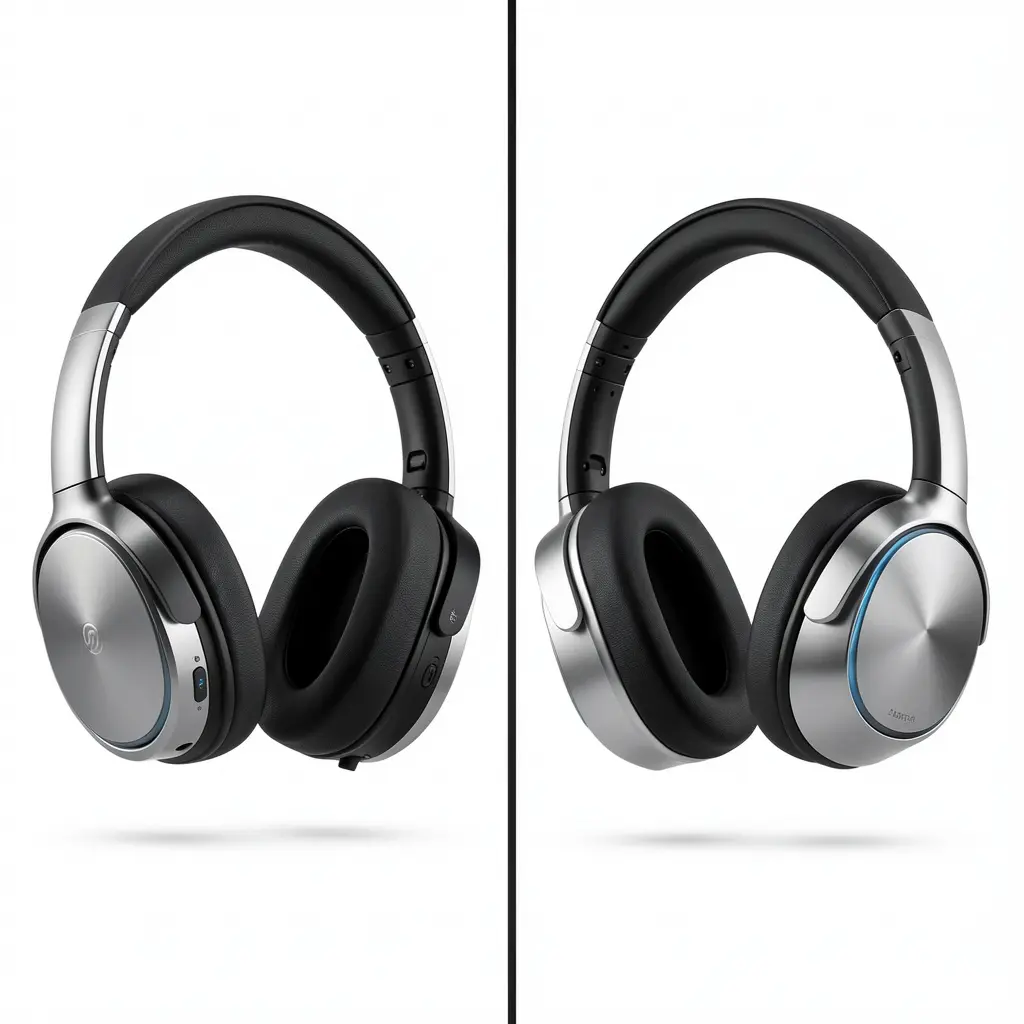



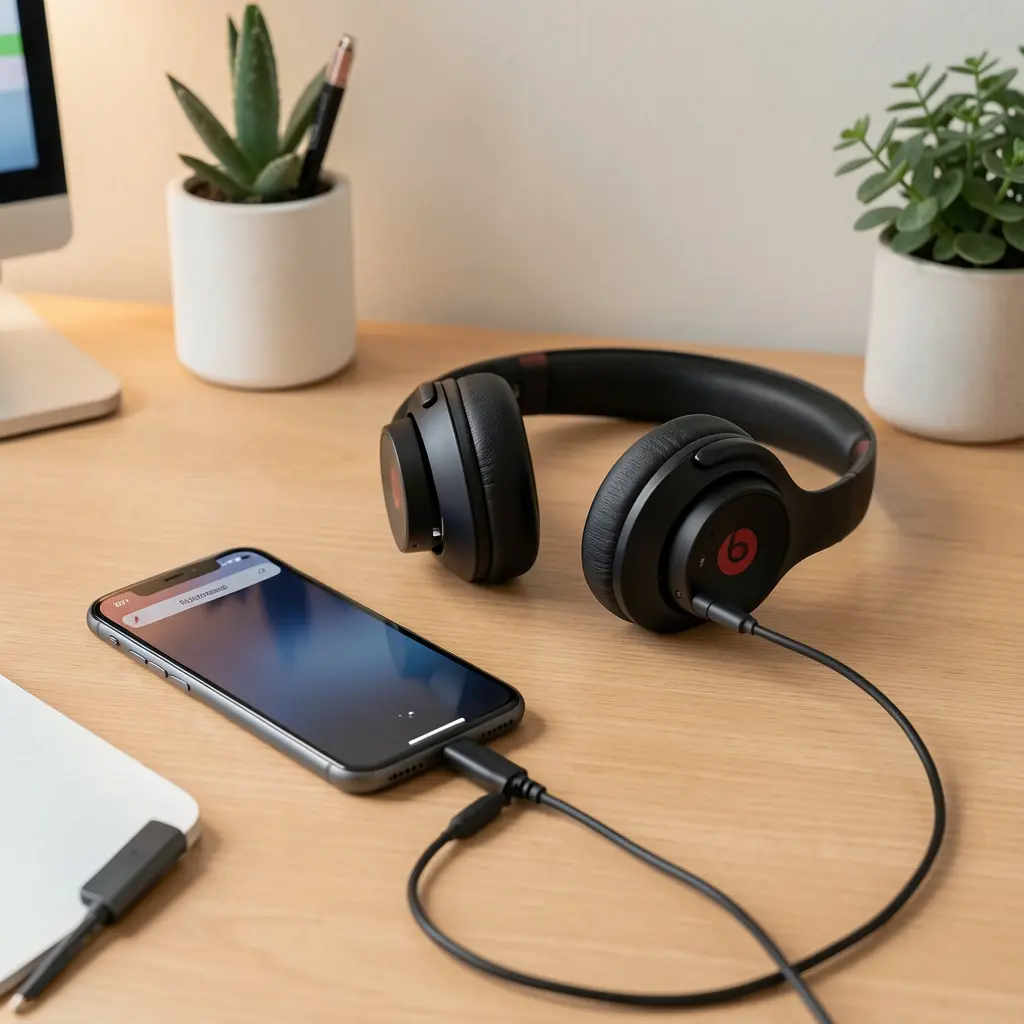
Why You Might Want a Wired Connection
Turning your Bluetooth wireless Beats into wired headphones may seem unusual at first, but there are several real reasons gamers, audio lovers, travelers, and professionals do it:
-
Zero latency for gaming or pro audio
-
Long listening sessions without battery drain
-
Better compatibility with wired devices
-
Lower interference in busy wireless environments
This guide is for anyone who owns a Beats Bluetooth headset and wants to know:
-
Whether wired mode is possible
-
How to do it step by step
-
What accessories you need
-
What trade-offs to expect
Can Bluetooth Beats Really Work in Wired Mode?
Short Answer
Yes — but only certain models support true wired audio.
Not all Beats headphones can output audio via wire because some rely solely on Bluetooth hardware.
Which Beats Models Support Wired Mode?
Models that generally support wired mode include:
-
Beats Solo3 (via headphone jack)
-
Beats EP
-
Beats Studio (some generations)
-
Beats Pro
-
Powerbeats / Powerbeats Pro (model dependent)
Note: Models like Beats Studio Wireless / Beats Solo Wireless may not have wired analog audio due to lack of audio jack hardware.
What You’ll Need to Convert Wireless Beats to Wired
Standard 3.5mm Audio Cable
If your Beats model has a headphone jack, you only need a standard 3.5mm audio cable.
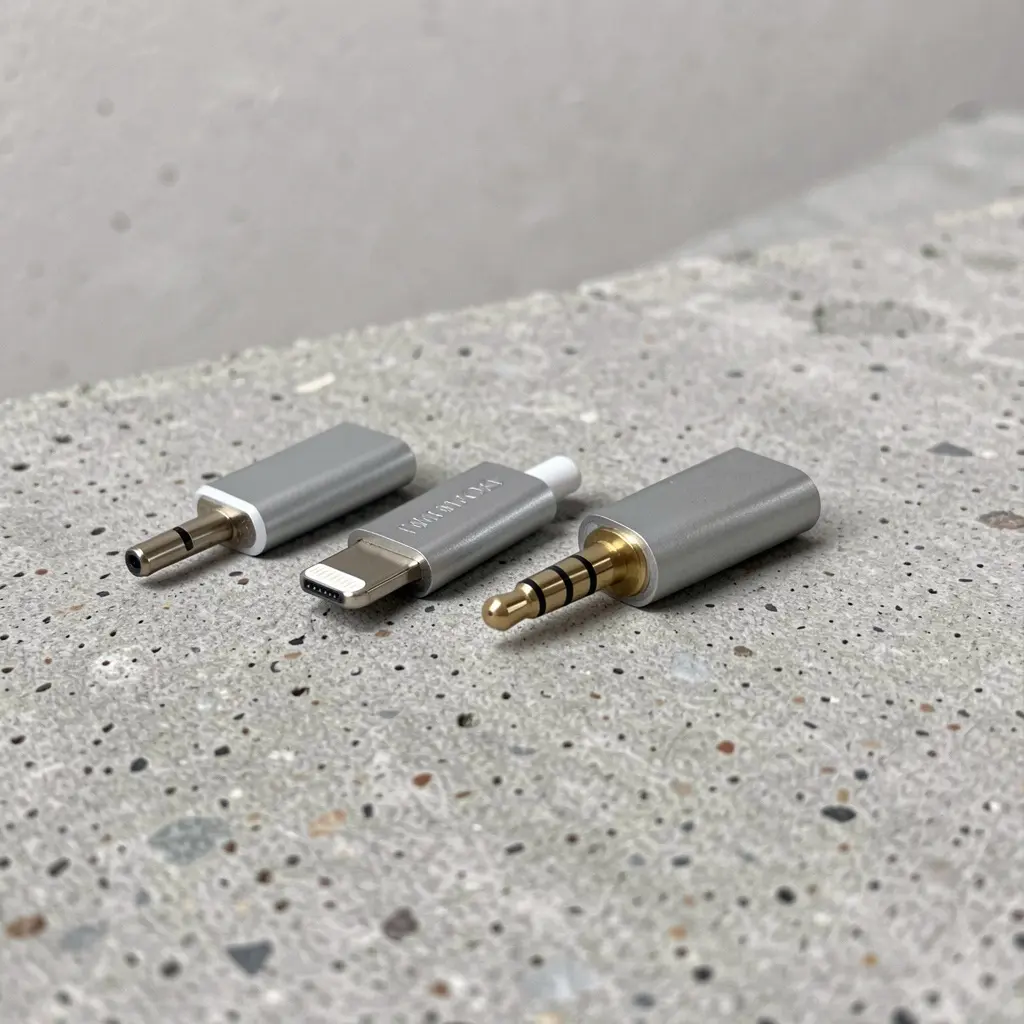
Lightning to 3.5mm Adapter (iPhone Users)
For newer iPhones without headphone jacks:
-
Apple Lightning → 3.5mm adapter
-
Make sure it supports audio output (not just charging)
USB-C to 3.5mm Adapter (Android / iPad)
If your device uses USB-C:
-
Use a high quality USB-C to 3.5mm adapter
-
Works on many modern phones/tablets
USB Audio Adapter
For devices lacking analog out:
-
USB → 3.5mm DAC adapter
-
Provides true wired audio output
Step-by-Step Guide to Turn Beats into Wired Mode
Step 1 — Check for a Headphone Jack
If your Beats has a headphone jack:
-
Plug the 3.5mm cable into Beats
-
Connect the other end to your device’s headphone port
-
Playback should switch automatically
Step 2 — Use Adapter for Phones Without Jack
-
Plug Lightning/USB-C adapter into device
-
Plug 3.5mm cable into adapter
-
Connect Beats
-
Play your audio source
This setup bypasses Bluetooth and prevents battery drain.
How to Know if Your Beats Supports Wired Audio
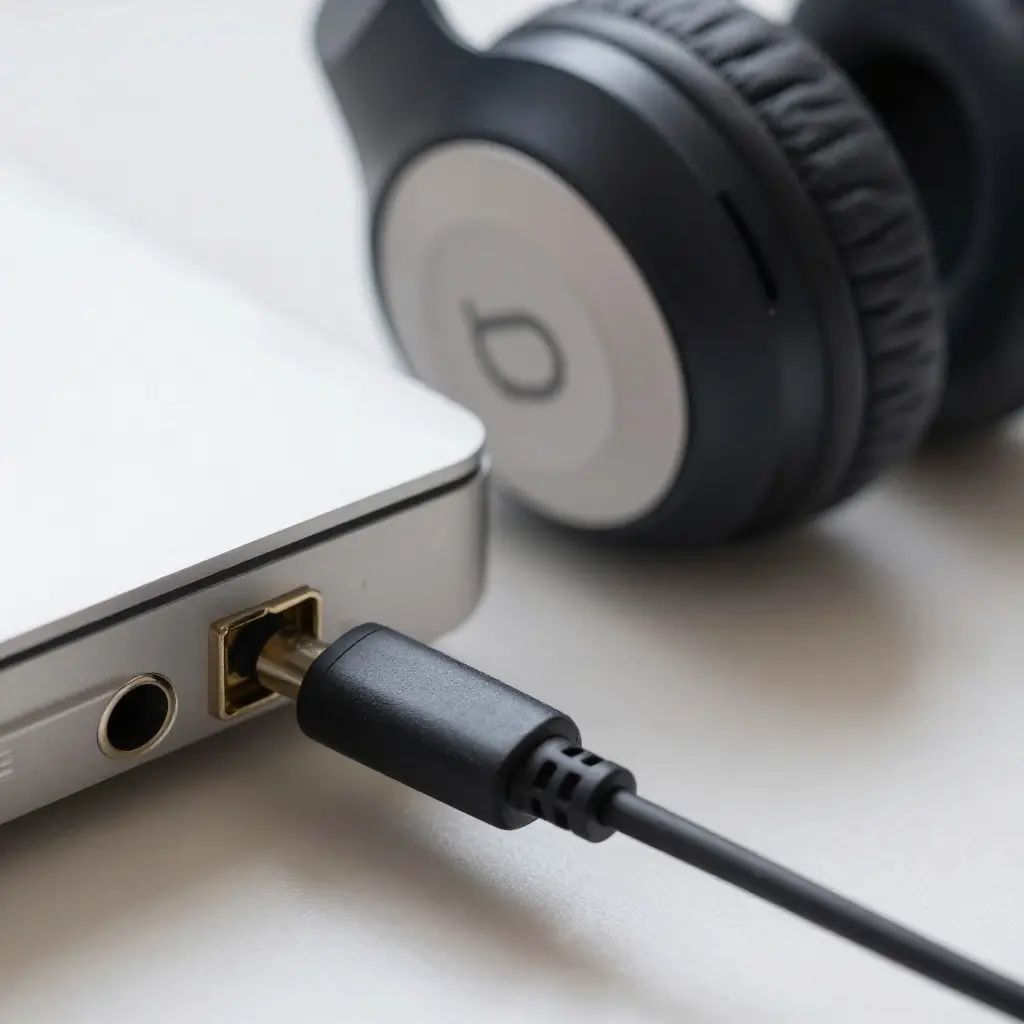
Look for These Features
-
A physical headphone jack
-
A 3.5mm port on the earcup
-
Documentation indicating “analog audio input”
What Happens If There Is No Jack?
If no physical jack:
-
Bluetooth is required
-
Wired audio likely not supported
-
Some models may support USB audio (rare)
Why Wired Audio Can Be Better Than Bluetooth
Lower Latency
Bluetooth adds a small delay.
Wired audio is instant, ideal for:
-
Gaming
-
Live streaming
-
Music production
Battery Free Listening
Wireless headphones die.
Wired audio:
-
Draws no Bluetooth power
-
Lets your battery last longer on your phone/devices
Cleaner Audio in Noisy RF Environments
In crowded areas (airports, concerts):
-
Bluetooth can glitch
-
Wired stays stable
Compatibility with Gaming Consoles and Devices
PlayStation / Xbox
-
PS/Xbox controllers often have 3.5mm audio out
-
Use a wired cable and bypass Bluetooth entirely
PC / Laptop
-
3.5mm mic/headphone jack — plug directly
-
USB audio adapters work if no analog out
“If you’re optimizing audio gear for performance, check out our guide on Best IEM for Gaming.”
“For hearing safety with long listening sessions, see How to Protect Your Hearing While Using Headphones.”
Troubleshooting Wired Beats Audio
No Sound When Plugged In
-
Check adapter compatibility
-
Ensure volume up on device
-
Try different cable
Only One Ear Working
-
Inspect cable tips
-
Test on another device
-
Check port clearance
Static or Noise
-
Try shielded audio cable
-
Avoid long cheap cables
Frequently Asked Questions (FAQ)
Can I use Beats Solo Wireless in wired mode?
Only if there is a physical headphone jack. Otherwise, wired mode is not supported.
Do I need a special app for wired connecting?
No. Wired audio bypasses Bluetooth, so no software needed.
Does wired mode improve sound quality?
Often yes—eliminates Bluetooth compression and latency.
Will calls work in wired mode?
It depends on headset mic support via cable—most standard cables do not carry mic.
Can you charge and use wired audio at the same time?
With some adapters you can (dual Lightning adapter), but compatibility varies.
Conclusion
Turning your Bluetooth Beats headphones into wired listening gear is not only possible — it’s often preferable when you need:
-
Zero latency
-
Long battery life
-
Stable audio in busy environments
-
Broader device compatibility
Whether you’re gaming on consoles, producing music, or simply want a reliable connection for long sessions, wired audio via the right adapter and cable can give you a clean, dependable sound experience. Follow the steps described here and test with your exact Beats model to find out what works best for your setup.