


Optimizing Audio Settings In Cakewalk
To optimize audio in Cakewalk, adjust buffer size and latency settings. A smaller buffer size gives lower latency. This makes sound quicker. But it can cause glitches. A larger buffer is better for stability. Choose a size that feels right.
Sample rate is also important. It affects sound quality. Common rates are 44.1 kHz and 48 kHz. Higher rates give better sound. But they need more power. Check your computer’s ability before changing.
Make sure your headphones are connected properly. This helps avoid sound issues. Always test the audio after changes. Good settings mean clear sound.
Troubleshooting Common Issues
Check your headphone connection. Make sure they are plugged in securely. If no sound comes, try another pair of headphones.
Verify the audio settings in Cakewalk. Go to the settings menu. Ensure the correct output device is selected.
Restart Cakewalk and your computer. This can fix many small issues. It refreshes the system and software settings.
For audio latency, adjust the buffer size. A smaller buffer can reduce lag. Go to the audio settings and change it there.
Check your computer’s sound settings. Make sure the volume is up. Sometimes, it’s muted by mistake.
Update your audio drivers. Outdated drivers can cause problems. Visit your computer manufacturer’s website for updates.
Advanced Tips For Headphone Monitoring
Using ASIO drivers can help with sound quality. They lower the delay when you play sounds. This makes your music feel more real-time. To set up ASIO, go to your Cakewalk settings. Choose the Audio tab. Then, select ASIO as your driver type.
For custom monitoring mixes, create different sound levels for each track. This helps you hear what you want. Go to the track you want to adjust. Use the fader to change the volume. Make sure to listen carefully to get the right mix.
Save your settings to use them later. This will make it easy to switch between mixes. Keep practicing to find the best sound for your music.
Maintaining Your Headphone Setup
Keep your headphones in top shape. Regular updates help avoid issues. Always check for software updates. This ensures smooth performance.
Take care of your headphones too. Clean them often to avoid dirt buildup. Use a soft cloth for cleaning. Don’t use water or strong cleaners. Store them safely when not in use.
Handle your headphones gently. Avoid pulling on the wires. This helps prevent damage. Treat your headphones with care. They can last longer this way.
Frequently Asked Questions
How Do I Set Up Headphones With Cakewalk?
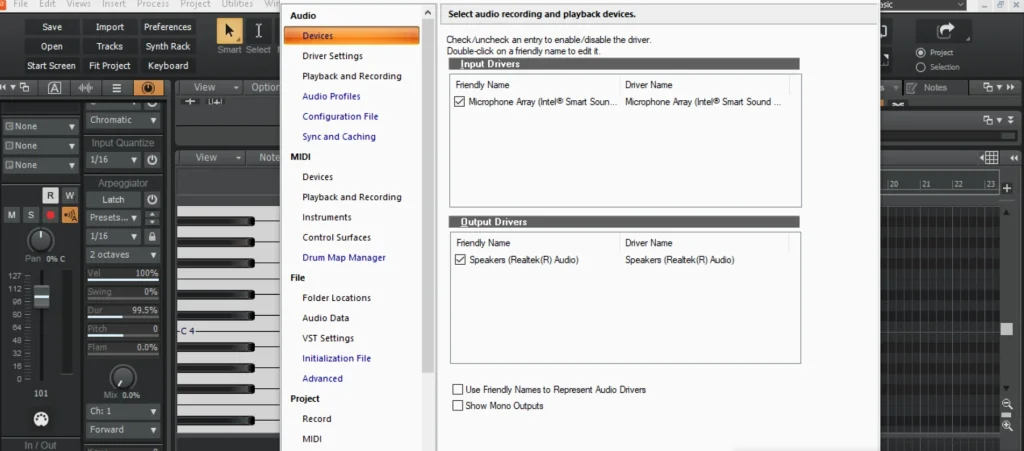
To set up headphones with Cakewalk, first connect your headphones to the audio interface or computer. Open Cakewalk and navigate to Preferences. Under the Audio tab, ensure your headphones are selected as the output device. Finally, adjust the output levels to your liking for optimal sound quality.
Why Won’t My Headphones Work With Cakewalk?
If your headphones aren’t working with Cakewalk, check the connections first. Ensure they are plugged in securely. Next, verify that the correct output device is selected in Cakewalk’s Preferences. Additionally, check your computer’s sound settings for any mute options or volume levels that may be affecting playback.
Can I Use Bluetooth Headphones With Cakewalk?
Yes, you can use Bluetooth headphones with Cakewalk, but latency may be an issue. Ensure your Bluetooth headphones are connected and set as the audio output device in Cakewalk’s Preferences. For best results, consider using wired headphones to avoid audio delays during recording and mixing.
How Do I Change Audio Output In Cakewalk?
To change the audio output in Cakewalk, open the Preferences menu by clicking on the gear icon. Navigate to the Audio tab and select your desired output device from the drop-down menu. After selecting, click Apply and then OK to save the changes, ensuring your headphones receive sound.
Conclusion
Connecting Cakewalk to your headphones is simple. Follow the steps carefully. Make sure your headphones are plugged in before starting. Check your audio settings in Cakewalk. This will help you hear everything clearly. Adjust the volume as needed. Test the connection with a track.
Enjoy your music production experience. With these tips, you can work comfortably. Clear sound makes a big difference. Happy creating!
Connecting Cakewalk to your headphones is essential for a smooth music production experience. This process helps you hear every detail of your work.
Many musicians and producers rely on Cakewalk for recording and mixing music. Yet, connecting it to headphones can be tricky. Understanding how to set this up is important for clear audio playback. Proper connection allows you to focus on your creativity without distractions.
Whether you are a beginner or an experienced user, knowing how to connect your headphones to Cakewalk will enhance your workflow. This guide will walk you through the steps needed to ensure you can enjoy your music in high quality. Dive in to discover the simple way to connect your headphones and get started on your next project.
Introduction To Cakewalk And Headphone Connectivity
Cakewalk is a powerful Digital Audio Workstation. It helps users create and edit music. Connecting headphones is important for listening. Good sound quality makes a big difference.
Reliable headphone connections help with clear sound. You can hear every detail in your music. This is key for mixing and editing. A strong connection prevents issues like noise and dropouts.
Make sure your headphones are compatible. Check the audio settings in Cakewalk. Adjust the output to your headphones. This way, you can enjoy your music without interruptions.
Preparation Steps
First, check your headphone specifications. Make sure they are compatible with Cakewalk. Look for the jack size and impedance. Most headphones use a 3.5mm jack. Some might need an adapter.
Next, ensure your Cakewalk software is up-to-date. Open the software and go to the settings. Look for the update option. Install any available updates. This helps with bugs and improves performance.
Connecting Headphones To Your Computer
To connect your headphones to your computer, check the ports. Most computers have a 3.5mm audio jack. This is a round hole, usually colored green. If your headphones use USB, find a USB port.
Next, plug your headphones into the correct port. You should hear a click when they fit properly. If your computer has Bluetooth, you can connect wireless headphones too. Turn on Bluetooth on your headphones and your computer.
After connecting, adjust your sound settings. Right-click the speaker icon on your screen. Select “Playback devices.” Choose your headphones and set them as the default device. Click “OK” to save changes.
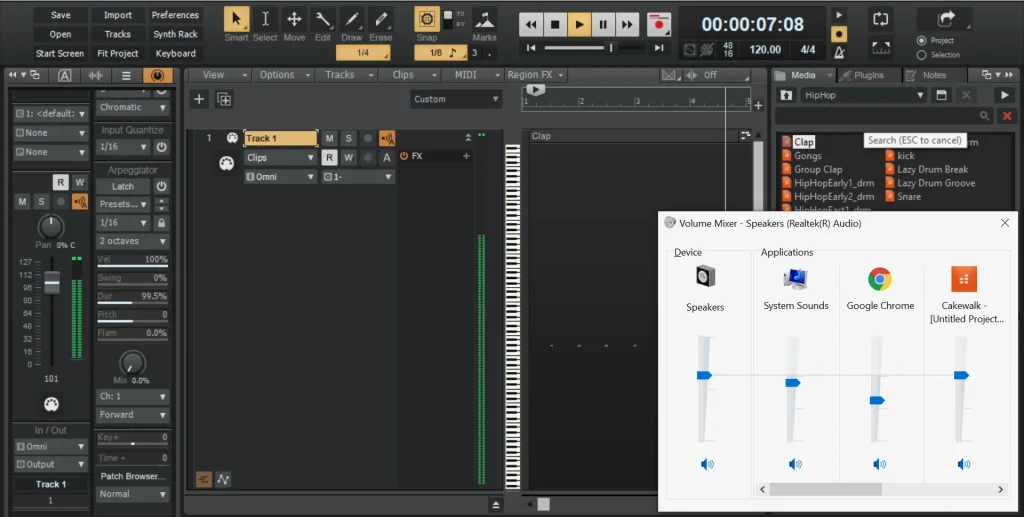
Now, test the sound. Play some audio. Ensure the volume is at a good level. You can adjust the volume using the speaker icon.
Setting Up Cakewalk For Headphone Use
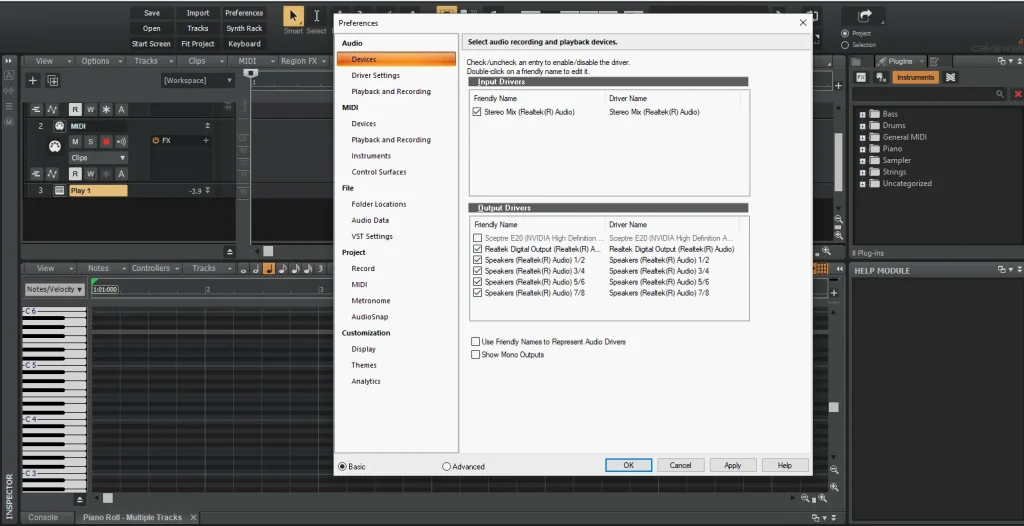
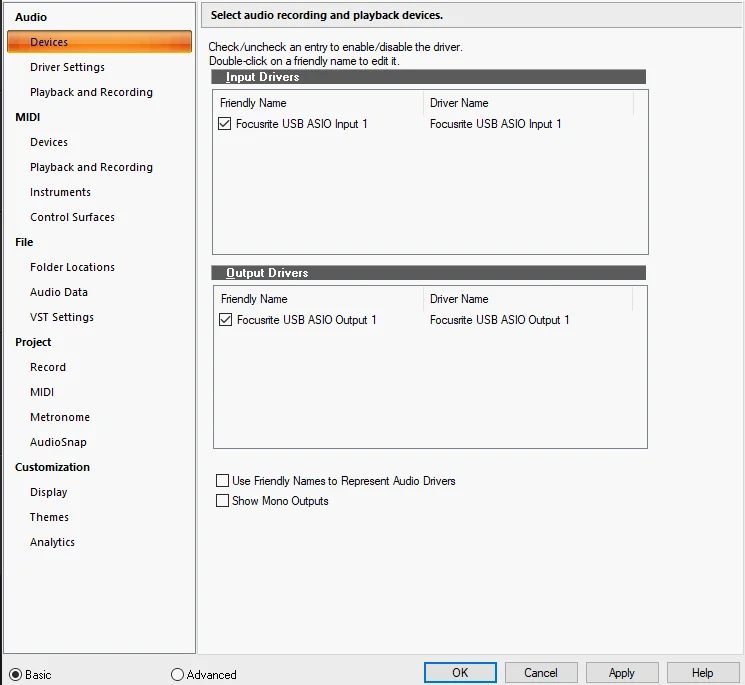
Open Cakewalk and go to the Preferences menu. You can find it in the Edit section. From there, select Audio. This is where you will set up your headphones.
Look for the Driver Settings option. Choose your audio device from the list. Make sure your headphones are connected. They should appear here.
Next, click on Outputs. This shows all output devices. Select your headphones as the main output. Save your changes to apply them.
Optimizing Audio Settings In Cakewalk
To optimize audio in Cakewalk, adjust buffer size and latency settings. A smaller buffer size gives lower latency. This makes sound quicker. But it can cause glitches. A larger buffer is better for stability. Choose a size that feels right.
Sample rate is also important. It affects sound quality. Common rates are 44.1 kHz and 48 kHz. Higher rates give better sound. But they need more power. Check your computer’s ability before changing.
Make sure your headphones are connected properly. This helps avoid sound issues. Always test the audio after changes. Good settings mean clear sound.
Troubleshooting Common Issues
Check your headphone connection. Make sure they are plugged in securely. If no sound comes, try another pair of headphones.
Verify the audio settings in Cakewalk. Go to the settings menu. Ensure the correct output device is selected.
Restart Cakewalk and your computer. This can fix many small issues. It refreshes the system and software settings.
For audio latency, adjust the buffer size. A smaller buffer can reduce lag. Go to the audio settings and change it there.
Check your computer’s sound settings. Make sure the volume is up. Sometimes, it’s muted by mistake.
Update your audio drivers. Outdated drivers can cause problems. Visit your computer manufacturer’s website for updates.
Advanced Tips For Headphone Monitoring
Using ASIO drivers can help with sound quality. They lower the delay when you play sounds. This makes your music feel more real-time. To set up ASIO, go to your Cakewalk settings. Choose the Audio tab. Then, select ASIO as your driver type.
For custom monitoring mixes, create different sound levels for each track. This helps you hear what you want. Go to the track you want to adjust. Use the fader to change the volume. Make sure to listen carefully to get the right mix.
Save your settings to use them later. This will make it easy to switch between mixes. Keep practicing to find the best sound for your music.
Maintaining Your Headphone Setup
Keep your headphones in top shape. Regular updates help avoid issues. Always check for software updates. This ensures smooth performance.
Take care of your headphones too. Clean them often to avoid dirt buildup. Use a soft cloth for cleaning. Don’t use water or strong cleaners. Store them safely when not in use.
Handle your headphones gently. Avoid pulling on the wires. This helps prevent damage. Treat your headphones with care. They can last longer this way.
Frequently Asked Questions
How Do I Set Up Headphones With Cakewalk?
To set up headphones with Cakewalk, first connect your headphones to the audio interface or computer. Open Cakewalk and navigate to Preferences. Under the Audio tab, ensure your headphones are selected as the output device. Finally, adjust the output levels to your liking for optimal sound quality.
Why Won’t My Headphones Work With Cakewalk?
If your headphones aren’t working with Cakewalk, check the connections first. Ensure they are plugged in securely. Next, verify that the correct output device is selected in Cakewalk’s Preferences. Additionally, check your computer’s sound settings for any mute options or volume levels that may be affecting playback.
Can I Use Bluetooth Headphones With Cakewalk?
Yes, you can use Bluetooth headphones with Cakewalk, but latency may be an issue. Ensure your Bluetooth headphones are connected and set as the audio output device in Cakewalk’s Preferences. For best results, consider using wired headphones to avoid audio delays during recording and mixing.
How Do I Change Audio Output In Cakewalk?
To change the audio output in Cakewalk, open the Preferences menu by clicking on the gear icon. Navigate to the Audio tab and select your desired output device from the drop-down menu. After selecting, click Apply and then OK to save the changes, ensuring your headphones receive sound.
Conclusion
Connecting Cakewalk to your headphones is simple. Follow the steps carefully. Make sure your headphones are plugged in before starting. Check your audio settings in Cakewalk. This will help you hear everything clearly. Adjust the volume as needed. Test the connection with a track.
Enjoy your music production experience. With these tips, you can work comfortably. Clear sound makes a big difference. Happy creating!