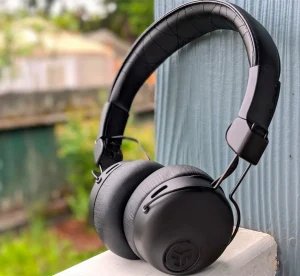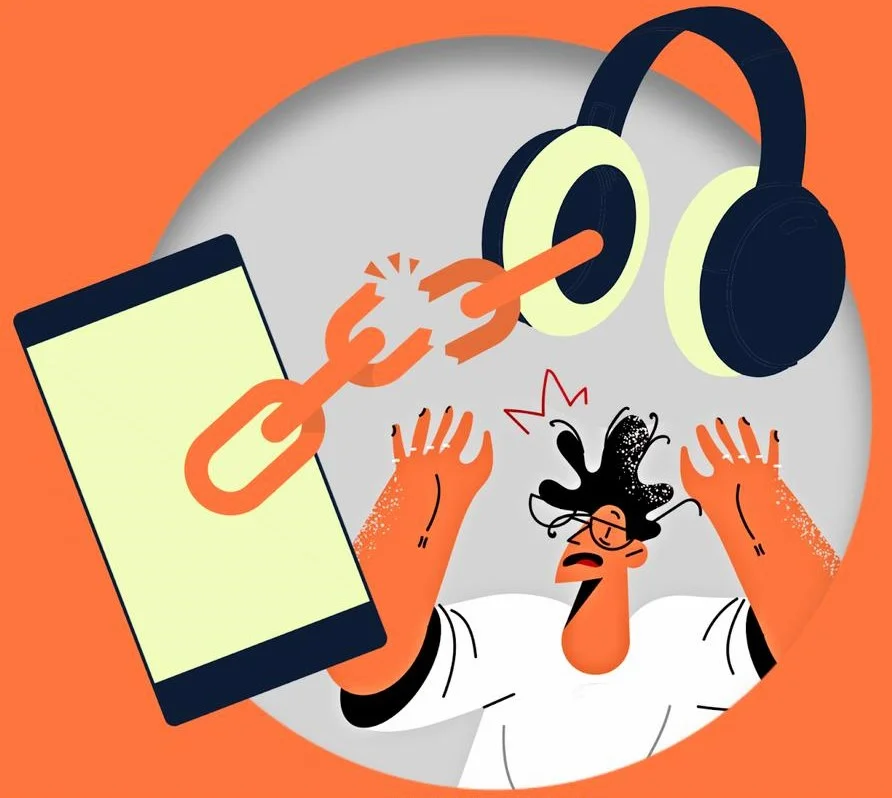
Headphones disconnecting from your PC can be frustrating. This issue can disrupt your music or gaming experience.
Many people face this problem, and it can happen for several reasons. Sometimes, it’s a simple fix, like a loose connection or outdated drivers. Other times, it may be due to software conflicts or hardware issues. Understanding the root cause of the disconnection can help you find a solution.
In this post, we will explore the common reasons why your headphones might keep disconnecting from your PC. We will also provide tips to help you troubleshoot and resolve this annoying issue. Let’s dive in and find out why this happens and how to fix it.
Introduction To Headphone Connectivity Issues
Many people feel frustrated when headphones disconnect. This problem can happen suddenly and often. It interrupts music, calls, or games.
Such issues can lower productivity. Work becomes harder without clear sound. Watching movies or playing games also loses fun. The sound cuts out at the best moments.
It’s important to find a solution quickly. Fixing these problems can improve focus and enjoyment. Staying connected is key for a good experience.
Identifying The Problem
Headphone compatibility is very important. Check if your headphones work with your PC. Some headphones need special drivers to connect. If they don’t match, they may disconnect.
Next, look at how you connect them. Are you using Bluetooth or a wire? Bluetooth can be tricky. It can drop the connection often. A wired connection is usually more stable. Always check the cable for damage. A broken cable can also cause disconnections.
Make sure your PC settings are correct. Look for audio settings. Sometimes, the wrong setting can cause problems. Keeping drivers updated is also helpful. This can improve performance.
Hardware Troubleshooting
Check the headphone jacks and cables first. Look for bent or damaged parts. Clean the jacks to remove dirt or dust. A dirty jack can cause disconnections.
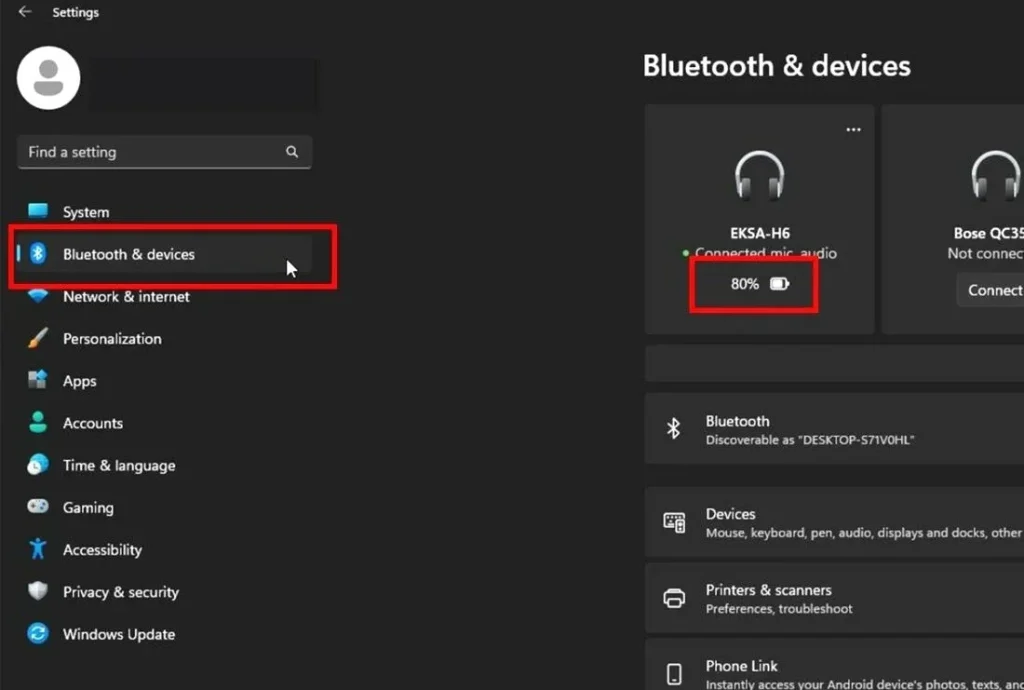
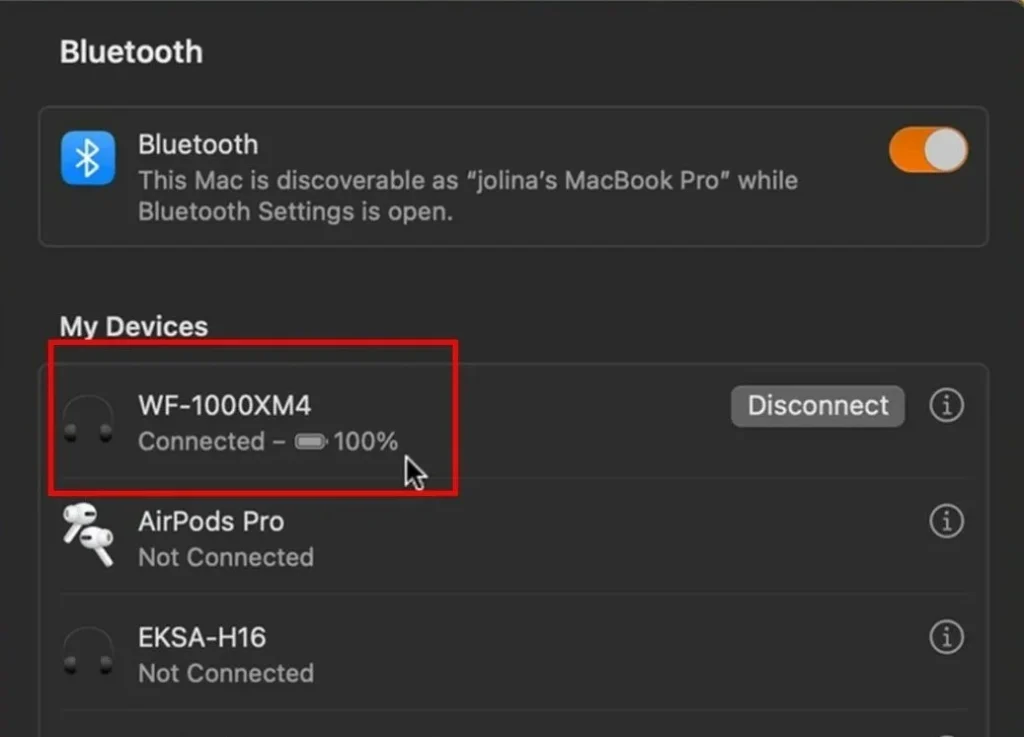
Next, check the PC ports. Make sure they are working properly. Try using different ports to see if that helps. If using Bluetooth, ensure it is turned on. Sometimes, Bluetooth can disconnect due to weak signals.
Restart your PC. This can fix minor issues. Make sure your drivers are updated. Outdated drivers can cause problems too.
Software And Drivers
Updating your audio drivers can help fix disconnection issues. Go to the Device Manager on your PC. Find the Sound, video and game controllers section. Right-click on your audio device and select Update Driver. Follow the prompts to install the latest version.
Next, check your sound settings. Right-click on the speaker icon in the taskbar. Select Sounds and then click the Playback tab. Make sure your headphones are set as the default device. This can help ensure a stable connection.
Interference And Range Issues
Wireless interference can disrupt your headphones. Many devices can cause this. Things like microwaves, Wi-Fi routers, and even walls affect the signal.
Keep your headphones close to the PC. The Bluetooth range is important. If you’re too far, the connection drops.
Try to reduce obstacles. Move away from other electronic devices. This can help improve the connection.
Check for updates on your PC. Sometimes, software updates fix connection issues. Regularly updating can keep your headphones working well.
Power Management Settings
Check your PC power settings. These settings can cause headphones to disconnect. Go to Control Panel. Click on Power Options. Choose your current plan. Select Change plan settings. Then click on Change advanced power settings.
Find the option for USB settings. Expand the USB selective suspend setting. Set it to Disabled. This helps keep your headphones connected.
Apply the changes. Now, restart your PC. This should fix the disconnection issue. If the problem continues, check other settings.
Operating System Quirks
System updates can cause headphone problems. They may change settings. Sometimes, updates break connections. Check for new updates often.
Compatibility issues can also cause disconnections. Some headphones may not work well with your PC. Make sure your headphones are compatible with your system. Look for drivers on the manufacturer’s website. Install them if needed.
Restart your PC after updates. This helps clear issues. If problems continue, try different USB ports. Sometimes the port is the problem.
Advanced Solutions And Tools
Using third-party software can help fix headphone issues. Some tools can find problems. They can also help connect your headphones better. These programs check your sound settings. They may update drivers automatically.
Consider professional repair if problems continue. A technician can find hidden issues. Sometimes, headphones need parts replaced. Buying new headphones might be cheaper. Think about the cost of repair versus new ones.
| Option | Pros | Cons |
|---|---|---|
| Third-Party Software | Easy to use, often free | May not fix all issues |
| Professional Repair | Expert help, thorough checks | Can be expensive, takes time |
| Replacement | New features, reliable | Initial cost, familiarizing with new |
Preventive Measures And Best Practices
Regular care for your headphones helps them last longer. Always store them in a safe place. Avoid pulling on the cords. This can cause damage.
Choose reliable equipment. Look for brands with good reviews. Check for a warranty. This shows the product is trusted.
Use your headphones in a clean environment. Dust and dirt can cause issues. Keep the connectors dry and clean. This helps maintain a strong connection.
Pay attention to battery life. Low battery can lead to disconnects. Charge them as needed to keep them working well.
Conclusion: Ensuring Stable Connections
Check the Bluetooth settings on your PC. Make sure it is on. Ensure your headphones are fully charged. Low battery can cause disconnections.
Look for interference from other devices. Move your PC away from other electronics. Restart both your headphones and PC to refresh the connection.
Try updating your PC’s Bluetooth drivers. Outdated drivers can cause issues. If problems continue, consider using a wired connection.
Enjoying clear audio is important. Follow these steps for a stable connection. A little effort can improve your listening experience.
Frequently Asked Questions
Why Are My Headphones Disconnecting Frequently?
Frequent disconnections can occur due to various reasons. First, check the Bluetooth connection if using wireless headphones. Low battery levels or interference from other devices can also cause issues. Additionally, outdated drivers or faulty audio ports on your PC might lead to connectivity problems.
How Can I Fix Headphone Disconnection Issues?
To fix disconnection issues, start by restarting your PC and headphones. Ensure your audio drivers are updated. If using Bluetooth, remove and re-pair your headphones. Check for physical damage to the audio jack or USB port. Sometimes, simply changing the USB port can resolve the problem.
Do Wireless Headphones Disconnect From Pcs Easily?
Wireless headphones can disconnect from PCs due to interference or low battery. Other devices operating on the same frequency can cause issues. Additionally, a weak Bluetooth signal or distance from the PC might lead to disconnections. Regularly charging your headphones can help maintain a stable connection.
Is My Headphone Jack The Problem?
Yes, a faulty headphone jack can cause disconnection issues. Dust or debris in the jack might prevent a proper connection. Additionally, a damaged or loose jack can lead to intermittent audio. Testing your headphones on another device can help determine if the jack is the issue.
Conclusion
Fixing headphone disconnections can be simple. Check your Bluetooth settings first. Ensure your headphones are charged and within range. Update your drivers for better performance. Sometimes, interference from other devices causes issues. Try reconnecting your headphones to see if that helps.
With a few adjustments, you can enjoy uninterrupted sound. Don’t let disconnections ruin your listening experience. Keep these tips in mind for smoother connections. Enjoy your music or calls without interruptions.